
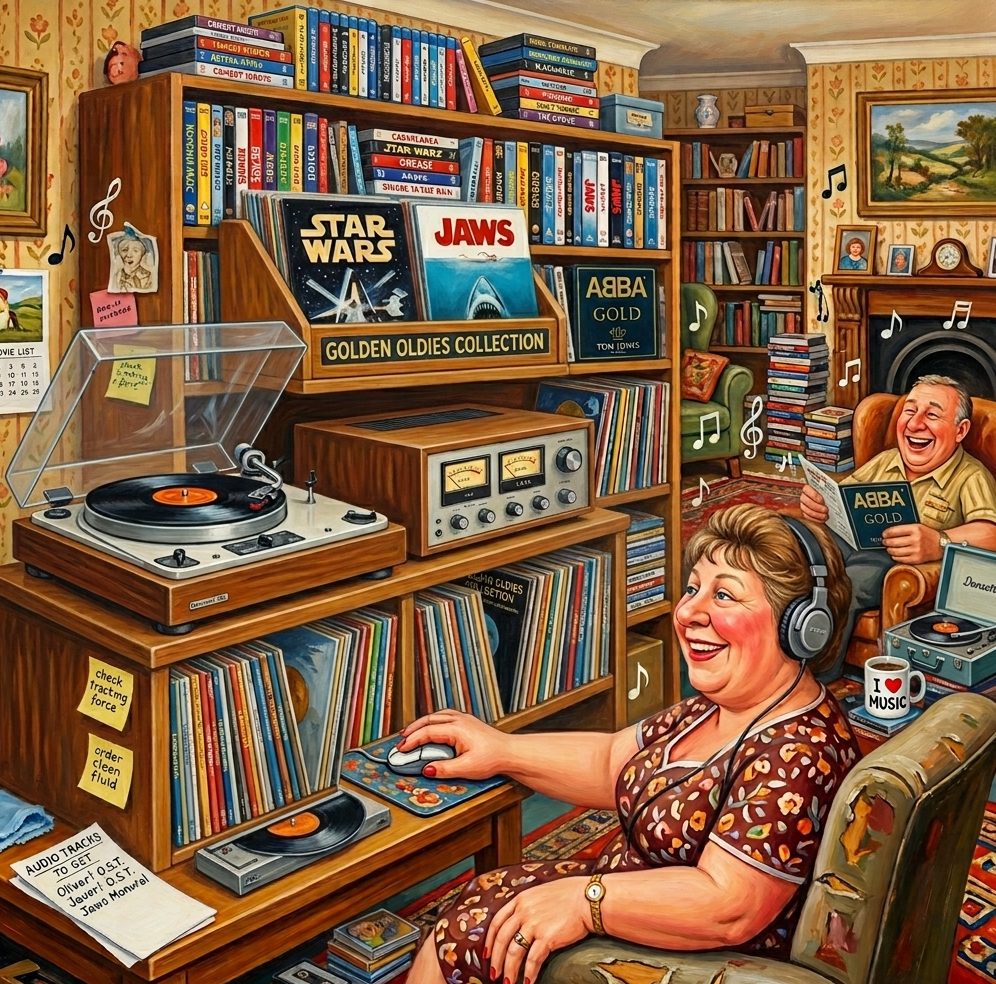
Simply Sounds pulls your whole audio collection together by scanning your device for sound files, from uploaded tracks and voice memos to stuff like album covers and sheet music. It all lands in one library, and you can group things into albums or build your own playlists to suit however you like to listen.
Browsing is easy thanks to the colour-coded tiles, which let you tell apart albums, standalone recordings, and playlists at a glance. It keeps things playful and simple, so organising your music and hitting play is never a hassle.
Play Store - coming soonFeatures
- Scans your device for sound files
- Search for tracks by title, date added, size and last listened date
- Album covers sourced from the internet
- Create playlists which can be played in sequential or random order and in loop
- All Android sound formats supported
- An optional slideshow during playback
FAQ
Is there a limit to the number of files that can be included in the Simply Sounds library?
There is no practical limited to the number of sound files.
Are sound files copied into the library?
No – sound files are linked to and the actual content files remain where they are.
How are albums created?
Simply sounds looks for sound files stored in a sub-directory to decide if they are in an album.
How to use Simply Sounds
Open the app and on a tablet the screen will be divided in two sides – the left hand or home panel will contain a major elements of the interface. On a narrower screen like a phone, this home page will open these sub pages. Return to the home panel by swiping from the left side of the screen or using the back button in the Android navigation bottom bar.
- A setting button where you can change the app theme, display mode and whether to play a slide show while tracks are being played.
- A Scan tile to check for sound files not in the Simply Sounds library
- An All tile which when pressed reveals all the tracks in the library – regardless of whether they are in an album or not
- The Albums tile which when pressed reveals the albums in the right hand column. There is a tile here for you to create your own albums. Press on the tile for an album to display and edit its contents
- The Playlists tile which reveals your playlists as well as a tile to create new playlists.